Instructors can create a Canvas assignment that allows students to embed and submit videos from Kaltura into the assignment for grading. Students will be able to choose a video or videos from their My Media or record videos and submit. Instructors can then use Speedgrader to view and grade the videos. Click the green links below to navigate this guide.
Note for users of screen readers: Letters in parentheses in the instructions below refer to corresponding areas on example images. If you have any questions about these instructions, contact the Office of Learning Technologies for assistance opens a new website.
Create the Assignment
To allow students to submit videos to a Canvas assignment using Kaltura, instructors need to allow text entry as the submission option. This allows students to use the Embed Kaltura Video option to embed their video(s) into the text box and submit. Follow the directions below.
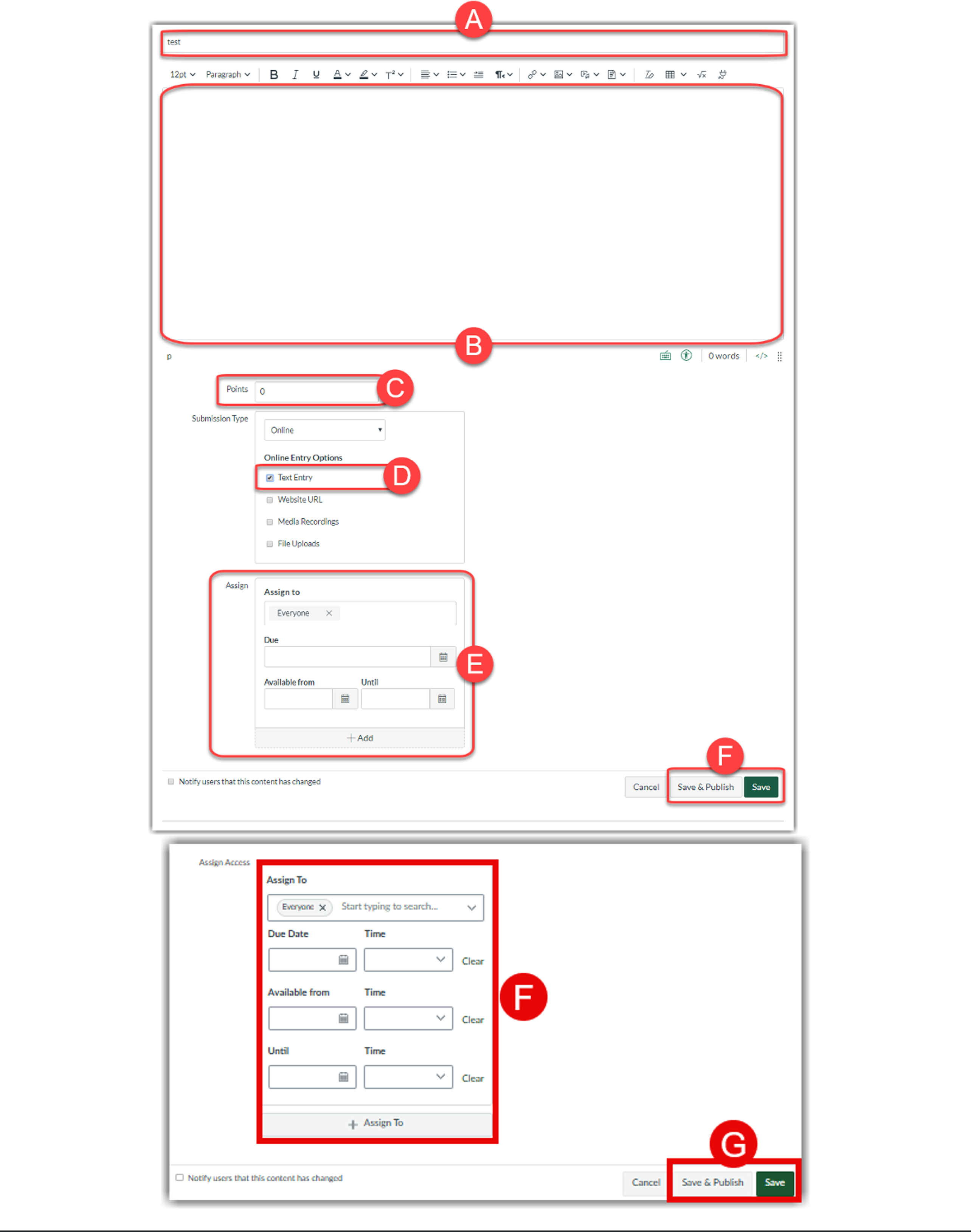
- Create a new Canvas assignment and enter the Assignment Title (A) and Assignment Description (B).
- Enter the number of Points (C) you want the assignment to be worth.
- Under Submission Type, select Online and choose the appropriate Online Entry Options such as Text Entry (D). Text Entry is the only way a student can embed Kaltura Video from My Media in their submission. Website URL will allow them to link to a Kaltura Video submission.
- Configure any additional assignment settings as needed, including Allowed Attempts, Plagiarism Review, Group Assignment, and Peer Reviews (E).
Students Submit
Once the assignment has been created and published, students can then embed their videos into the assignment and submit for grading. The following is the workflow a student would follow. Instructors can share the Submitting a Kaltura Video Assignment with their students.
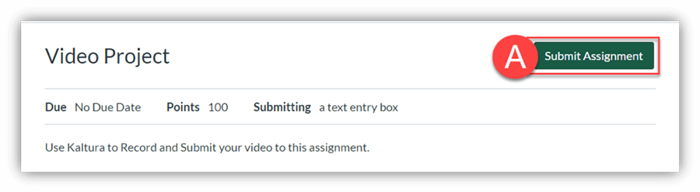
- Students locate the Canvas Assignment and click the Submit Assignment (A) button at the top right.
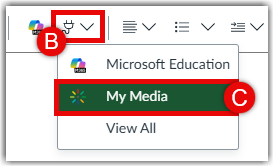
- They click Text entry tab and move the insertion point to the desired location in the text box. Click on the Apps (B) plug-in icon to open a new window. Click the Kaltura Media (C) logo. Note: Depending on the resolution of your screen, you may have to click the vertical 3 dots at the far right of the toolbar in order to see the apps icon.
- A window will pop up and display any videos already stored in the student’s Kaltura library (My Media). If they have already recorded their video they can skip to step five.
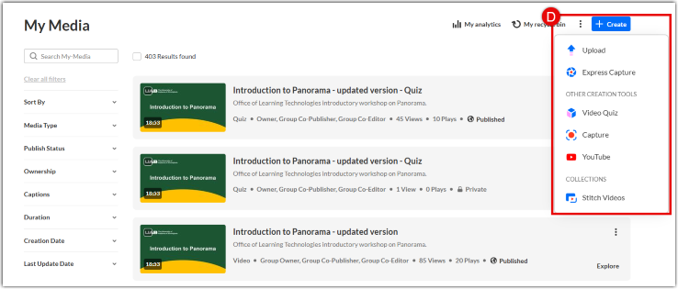
- Students can click the + Create (D) button to record or upload a video on the spot. The full options are below:
- Upload: Choose this if you have a media file saved on your computer.
- Express Capture: Choose this to record a quick webcam video directly in your browser.
- Video Quiz: Choose this to build an interactive video quiz from an existing video.
- Capture: Choose this to launch Kaltura Capture and record your screen, webcam, and audio.
- YouTube: Choose this if you want to link or embed a YouTube video using its URL.
- Stitch Videos: Choose this to combine multiple media clips together.
For a detailed guide on the above options, visit the Adding Media to My Media guide.
- Students then identify the video to be submitted and click Embed (E) or click the preview and settings icon (F) to customize embed options before inserting.

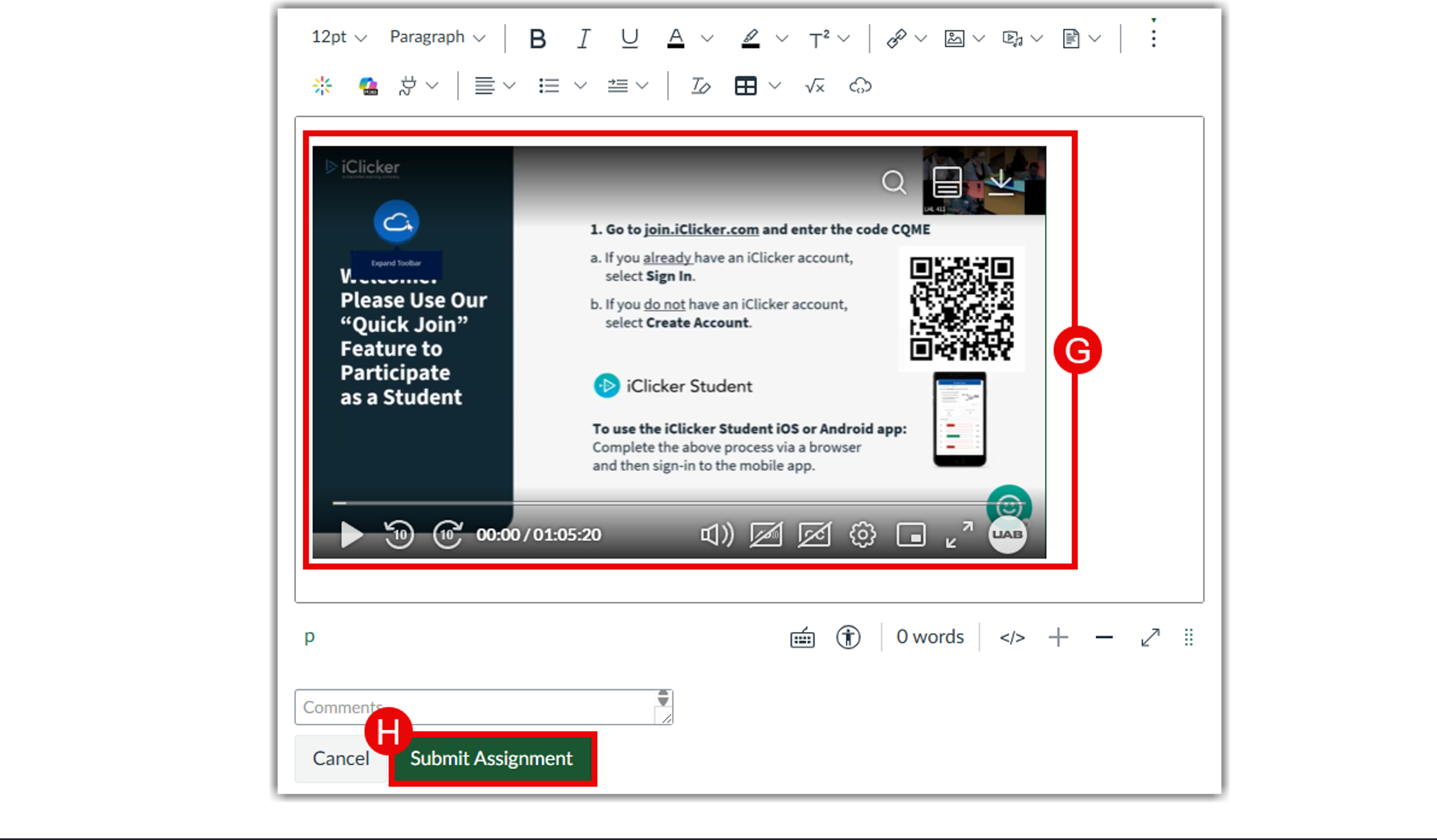
- The selected video will be embedded (G) into the text box, Student can then click Submit Assignment (H).
Grading the Assignment
Once students have submitted the videos, instructors can pull up Speedgrader to watch and grade the videos without having to download them all.
- Access Speedgrader to view and grade the assignment.
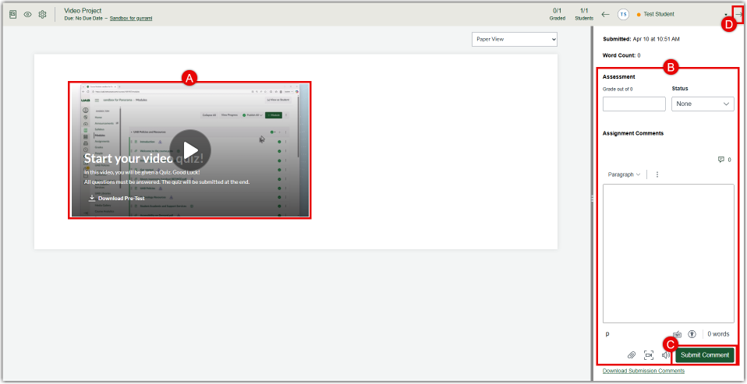
- The video(s) submitted by the student will be embedded on the left. Click the video (A) to watch the video.
- Options to grade (B) the assignment are on the right. Instructors can type in the numerical grade, use rubrics, make comments, attach files, and even record a response video.
- Click Submit (C) to submit the grade and feedback. Click the arrow (D) on the top right to move to the next student.