By default, owners of a video are the only ones who can download the video. Owners can allow others to download their video two different ways depending on how they are sharing their video. See the instructions below on how to download your own video and how to allow others to download.
Note for users of screen readers: Letters in parentheses in the instructions below refer to corresponding areas on example images. If you have any questions about these instructions, contact the Office of Learning Technologies for assistance opens a new website.
Download My Video
The owner of a video in Kaltura can download a video by using the following directions.
- Access My Media in Canvas or at mediaspace.uab.edu. (Learn how to access My Media.)
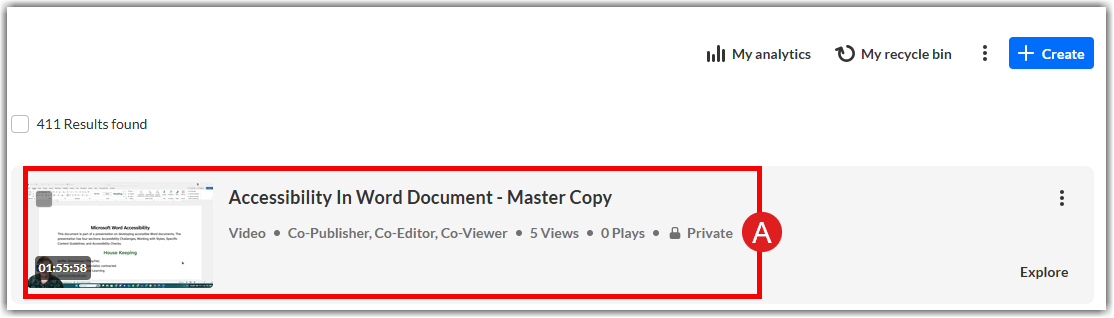
- Select the video (A) and open it.
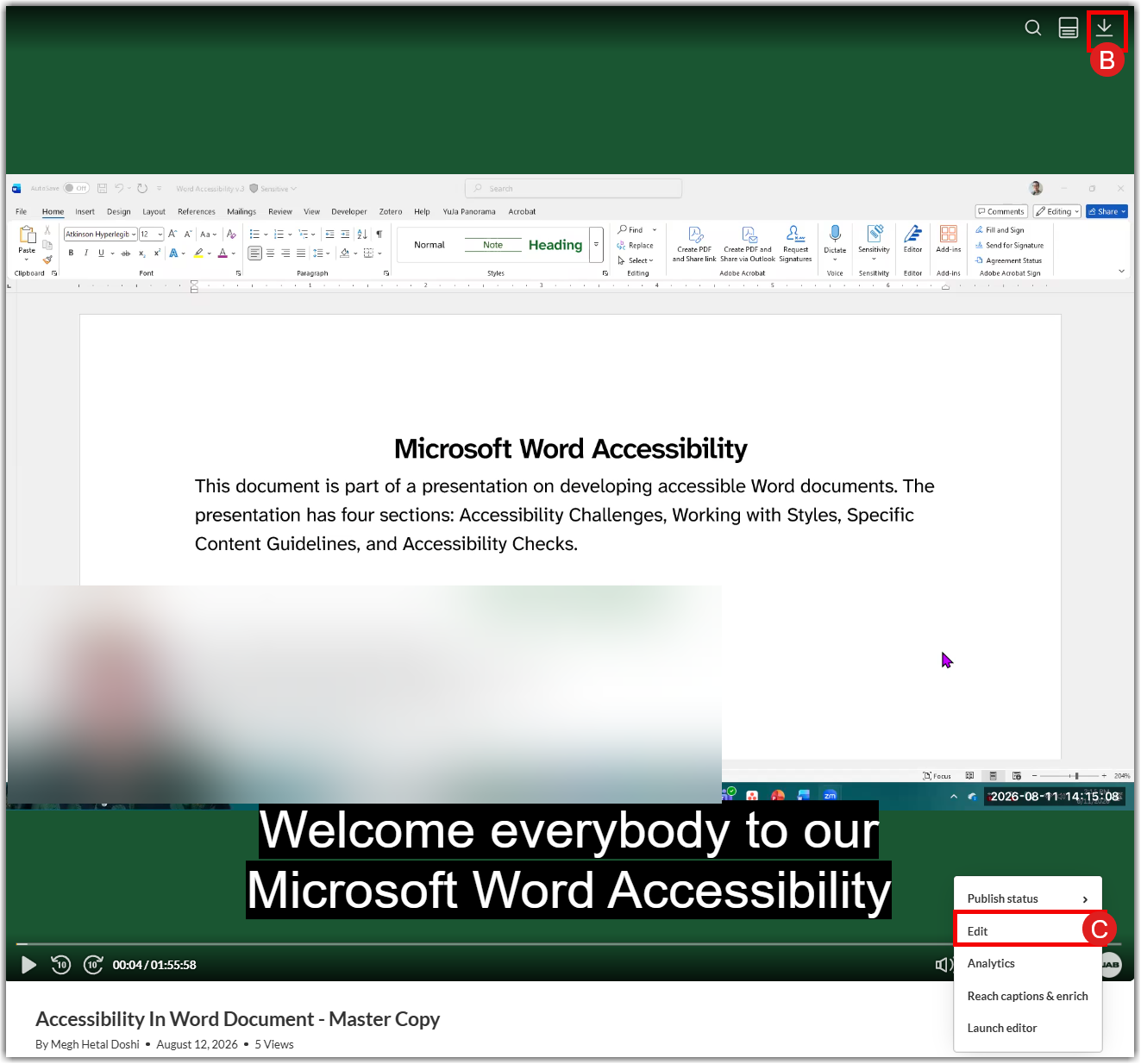
- If you are unable to download the video from the Download Icon (B) at the top right corner of the video, Click the Edit (C) icon at the bottom sections of the video player.
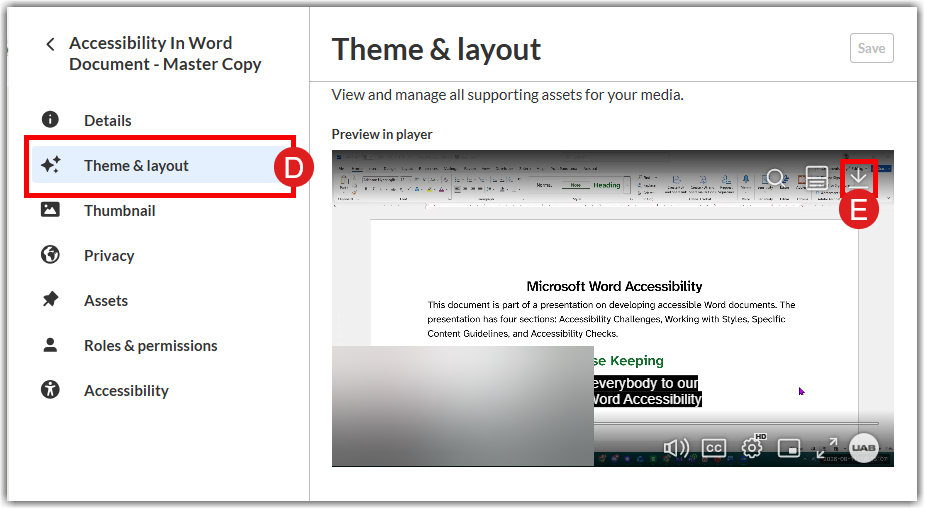
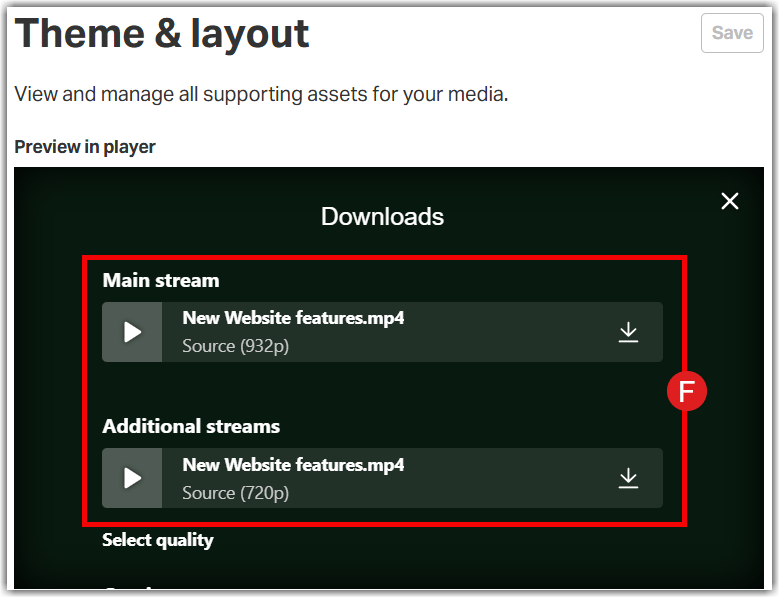
- Select Theme and Layout (D) and click the download button (E) on the top right of the player.
- Select the Type of Stream (F) you want to download.
Allow Others to Download
Viewers cannot download your videos by default, but you can allow them to download in one of two methods depending on how you have shared your video.
- Canvas Embed
- Media Gallery or Channel
Canvas Embed
If you are embedding your video into a Canvas page, discussion, assignment etc. you can choose to embed the video in a player that includes the download icon.
- Follow the instructions to embed a Kaltura video.
- When choosing the video to embed, click the Settings options (A).

- Click the drop down for Choose Player (B) and select one of the players with a download option.
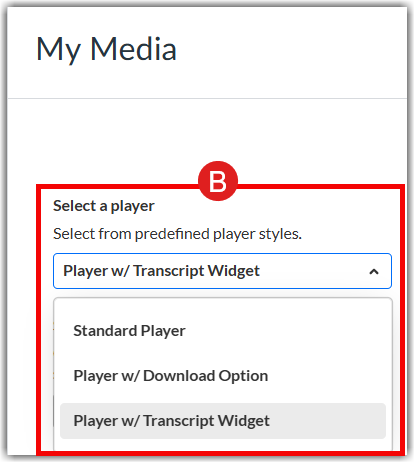
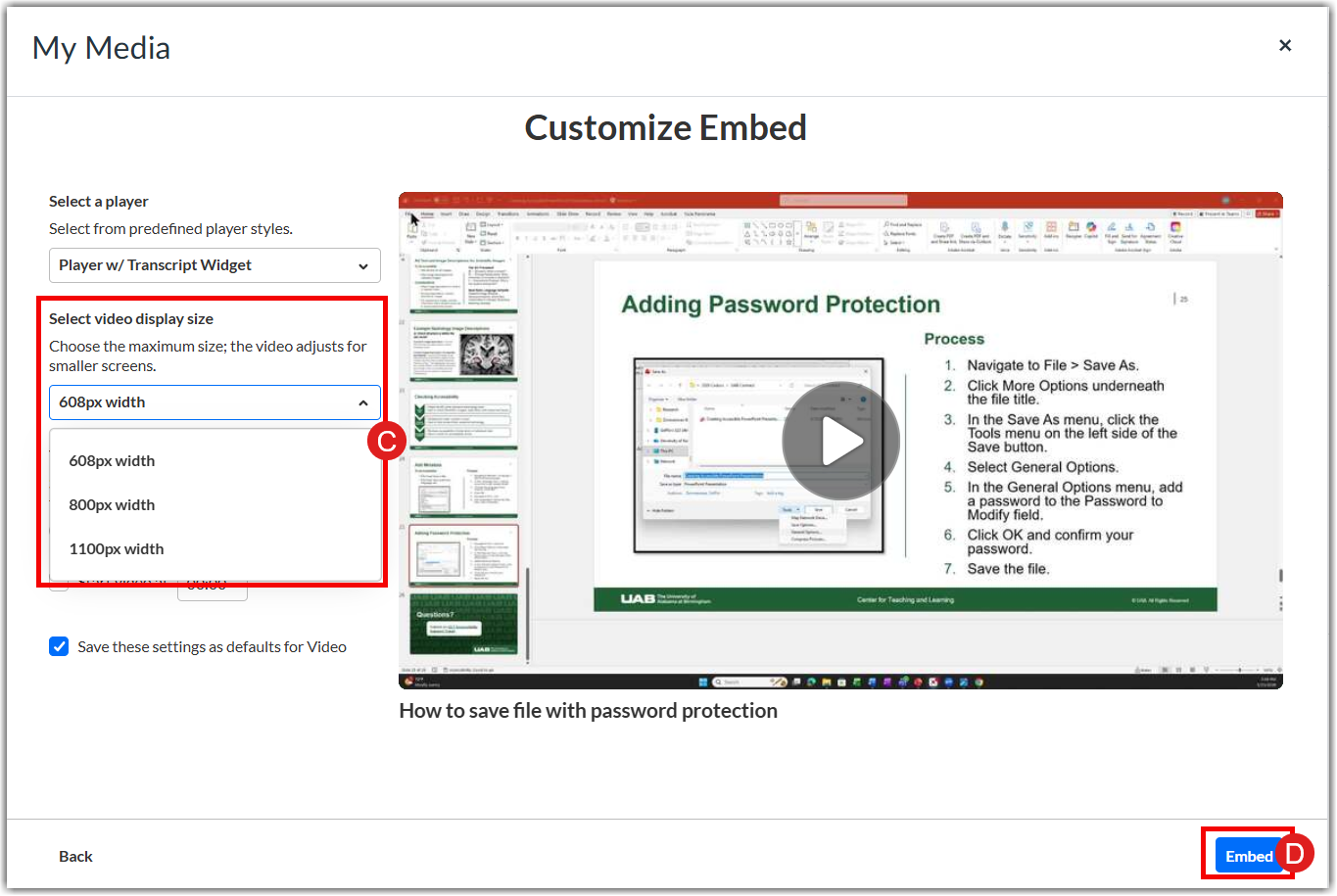
- Select a video display size (C) from the dropdown menu and select Embed (D).
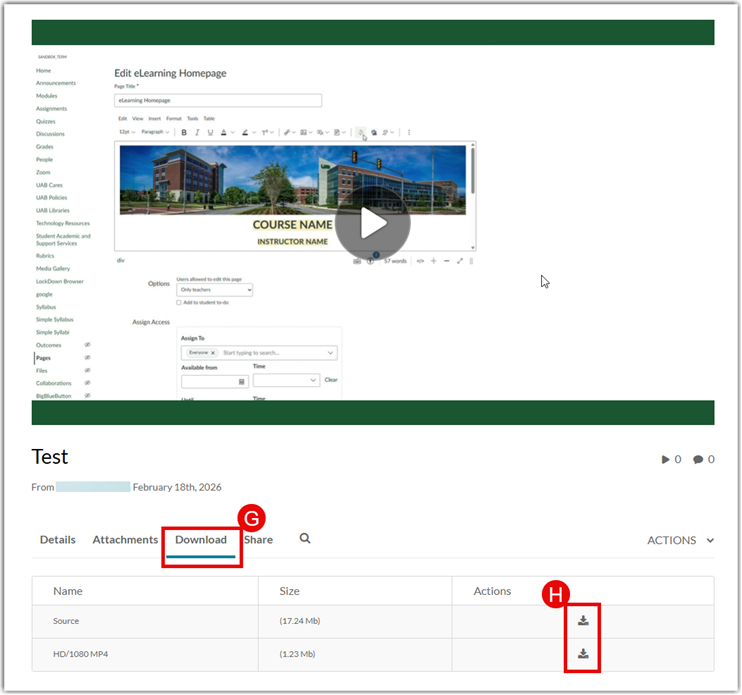
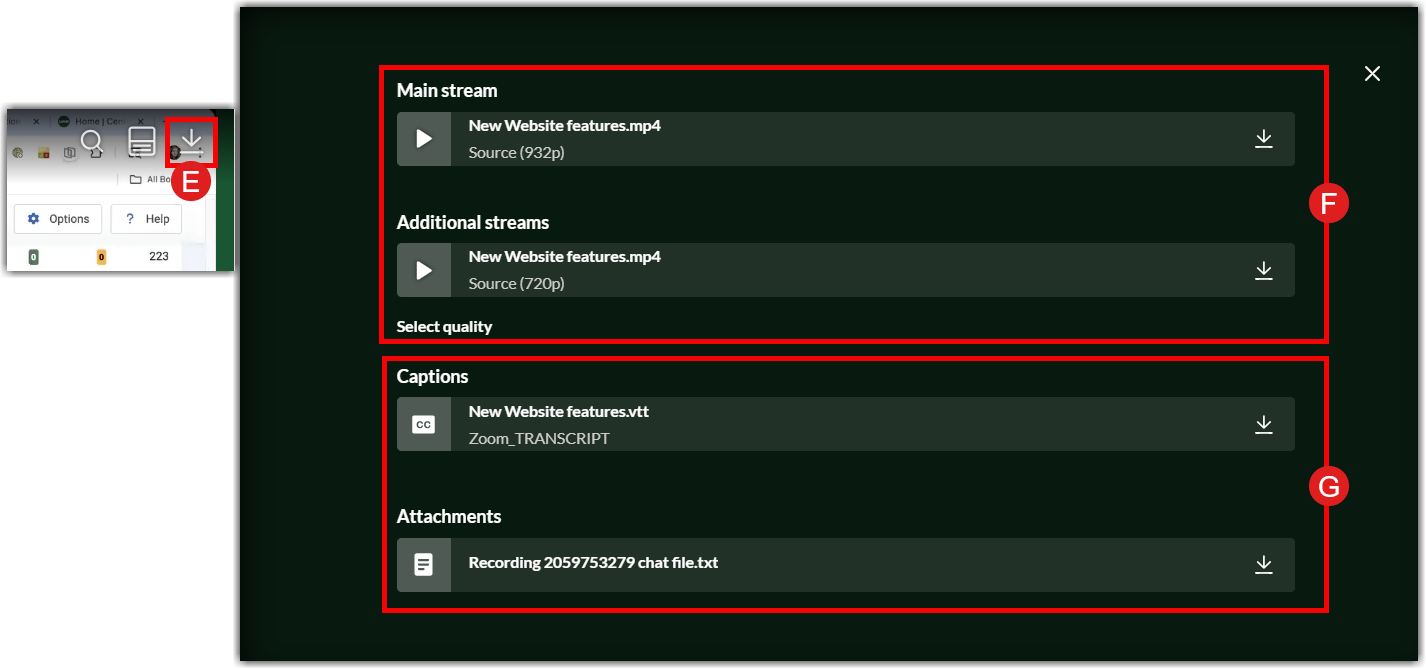
- Publish your page or assignment and select the Download button (E) on the top right corner of the video. Others can select between Mainstream and additional streams (F) of video or Captions and Attachments (G).
Media Gallery or Channel
If you have published your video to a Media Gallery or Media Space Channel, follow these directions.
- Locate the desired video in My Media. Learn how to locate video.
- Click the Pencil (A) edit icon at the far right of that entry.

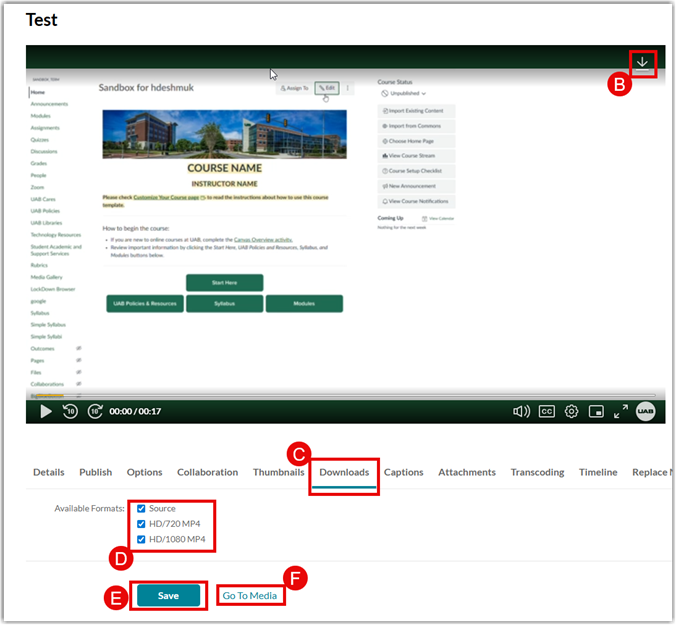
-
If you are unable to download the video from the Download Icon (B) at the top right corner of the video, Click the Download (C) icon at the bottom sections of the video player and select the Video Resolution (D) and Save (E). After saving Go to Media (F).
- Check the box to Allow Downloading (C) then click Save (D).